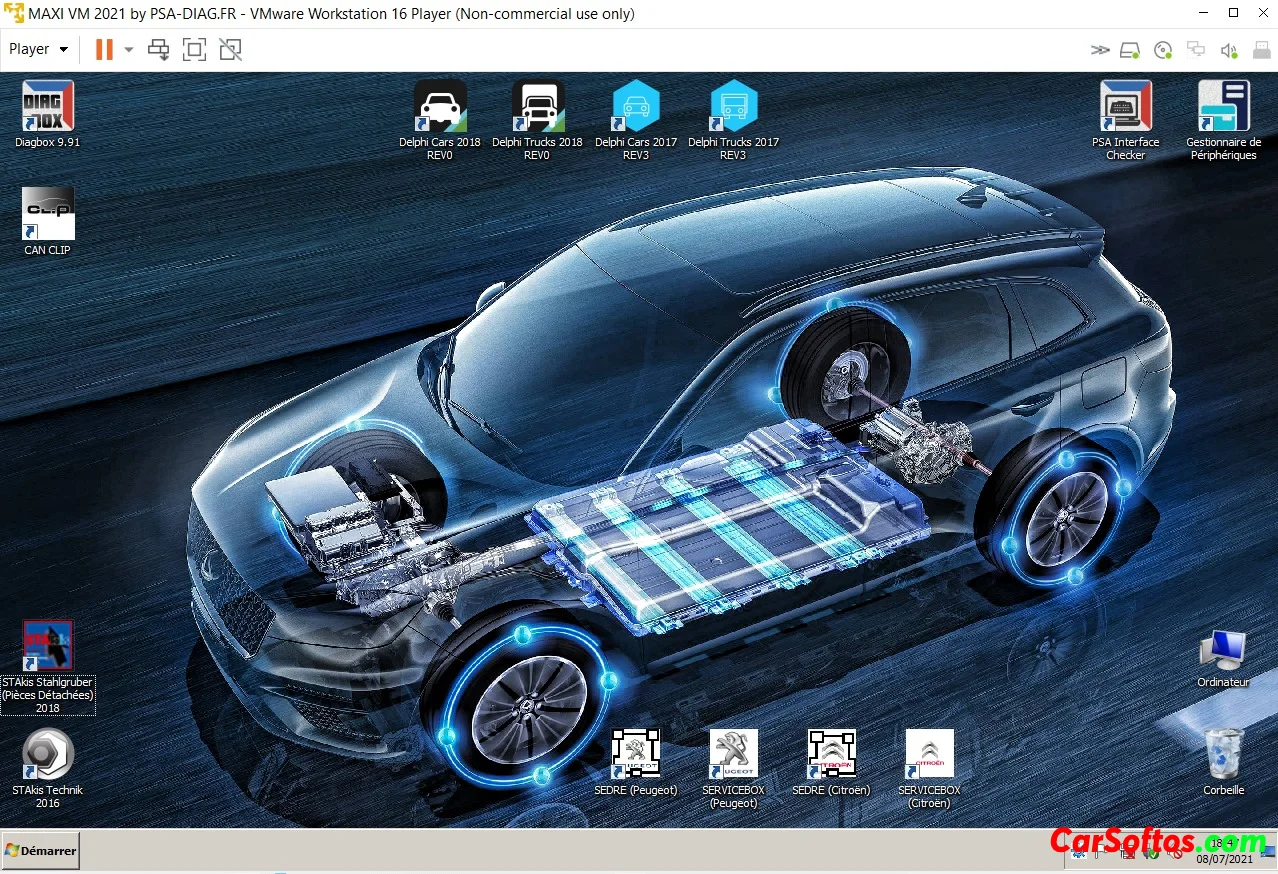
Large set of diagnostic software and technical data image for virtual machine.
DIAGNOSTIC TOOLS:
DIAGBOX 9.91 (PSA until 2021 + OPEL only since 2021)
CAN CLIP 208 (Renault and Dacia until 2021)
RENOLINK 1.87 (Renault and Dacia)
VCDS 21.3 (Volkswagen, Audi, Skoda, Seat until 2021)
DELPHI 2017.R3 CARS AND TRUCKS (multi-brand until 2016)
DELPHI 2018.R0 CARS AND TRUCKS (multi-brand until 2017)
WOW 5.00.8R2 (multi-brand until 2014)
WOW 5.00.12 (multi-brand up to 2016)
DIAGRAMS - REPAIR MANUALS - RTA:
SERVICEBOX 2013 (DOCBACKUP) (Links to parts and repair methods for PEUGEOT and CITROEN up to 2013
(provided with a patch for activation in various folders in case of activation loss)
SEDRE 2013 (electrical diagrams of PEUGEOT and CITROEN up to 2013)
DIALOGYS 4.90 (catalogs of parts, repair methods and electrical diagrams for RENAULT DACIA up to 2021)
HAYNES PRO 2016 (Multi-brand repair methods up to 2016)
STAKIS STAHLGRUBER 2018.1 (multi-brand parts up to 2018)
BONUS: VARIOUS DOCUMENTATION TO HELP IN DIAGNOSTICS, USING THE SOFTWARE.
Installation instructions:
- EXTRACT ALL CONTENTS of the archive (WITH 7ZIP or WINRAR SOFTWARE, updated version (otherwise archive error if old version!!!) to the folder "My Documents\VM\", for example, or to another folder AND NEVER MOVE FILES AFTER OPENING THE VM, and especially do not extract directly to the root of the hard drive C:, otherwise the error "insufficient file access rights" will occur
!!!!! also do not open files directly from the archive!!!!
- First install VMWARE PLAYER FROM ADMINISTRATOR, provided in the folder (be careful with the version, if you have Windows 7, it is 15, Windows 8/10, it is 16.1), allow the installation of various drivers, then finally reboot the PC.
- Create a shortcut on the desktop for the file "Maxi_VM_2021(REV03).vmx" by right clicking > Send to > Desktop (Create shortcut).
- Open the shortcut you created earlier, the virtual machine will start, a message in English will appear:
Select the option >> I HAVE MOVED << if you click the wrong button, DIAGBOX will not be activated, it will start and after 2 minutes it will freeze, offering to buy a license... you will have to start all over again (delete the virtual machine and restart it)!
- While on the desktop, connect your interface to the PC, a VMware message will appear (in English) asking you to
choose where you want to connect...
Check the "Connect to a virtual machine" checkbox, and then the "Remember my choice and don't ask" checkbox.
- Servicebox needs to be reactivated with the keygen provided on the desktop, + after that, some actions need to be performed to display the vehicles

- 2
Tags: